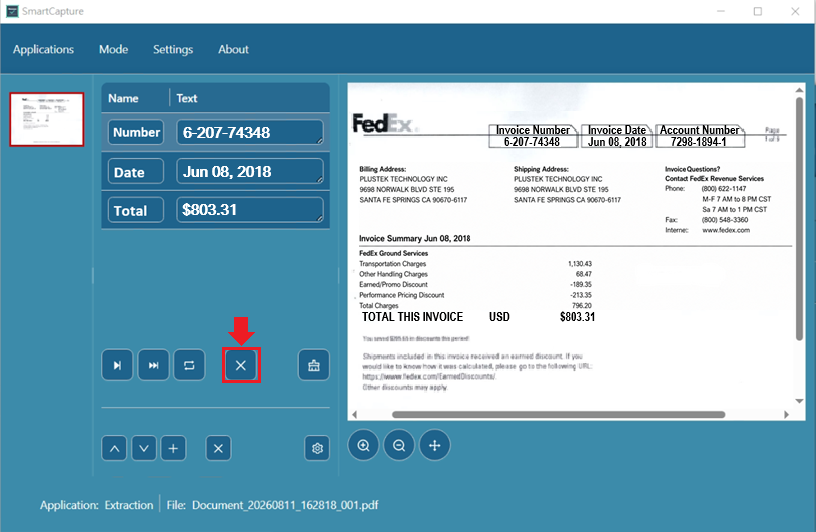
❖ Data Extraction
Once OCR is complete, SmartCapture opens in a new window. The preset index fields (such as Number, Date, and Total) appear blank in the left panel, ready for you to select a field and capture values directly from the document.

❖ Field Definition
o Document Preview
The preview pane on the right displays the scanned document, allowing you to select and define the areas for data extraction.
For better visibility while working with scanned documents:
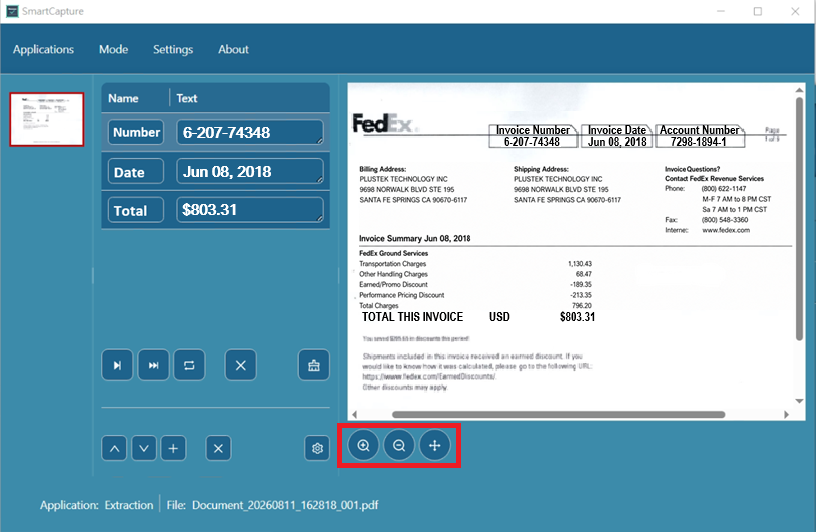
Click  Zoom In or
  Zoom Out to adjust the image magnification.
Click  to automatically resize the document to fit the preview area.
o Document Learning

To help SmartCapture learn the current document layout, select  an index field on the left and highlight
  the corresponding data directly on the document image.
  The selected value will automatically fill into the field. Repeat this for all required fields.
Once this learning process is complete, SmartCapture will automatically recognize and extract these same fields from future documents with the same layout.
o Managing Fields
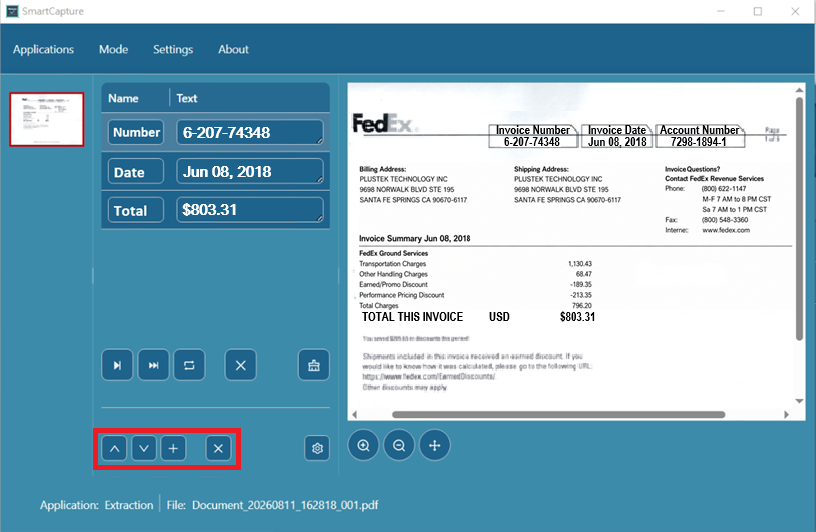
Use the toolbar to add, organize, and configure data extraction fields:
 New Field: Create a new field for data extraction.
 Delete Field: Remove the selected field.
 Move Up /
  Move Down: Change the order of the selected field in the list.
 Field Settings: Configure the selected field, including filters and matching criteria (for example, requiring digits or a specific text format).
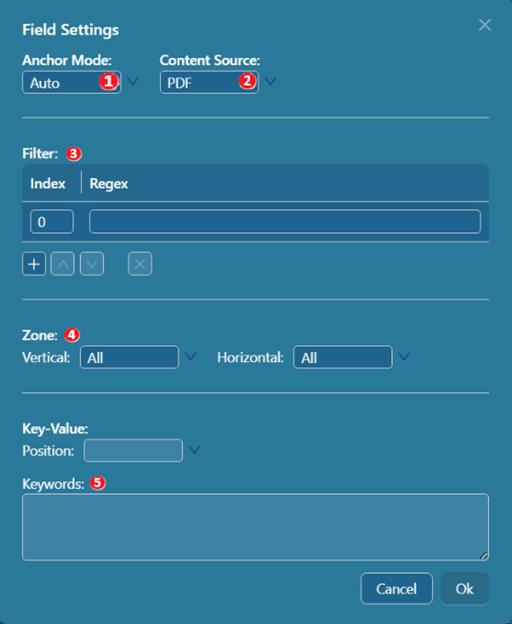
Anchor Mode:
Sets the positioning mode by selecting Auto (automatic recognition), Keyword (locates data relative to fixed text labels), or None (disables anchor positioning).
Content Source:
Select whether to extract data from document text (PDF) or encoded barcodes (Barcode).
Filter (Index / Regex):
Uses Regular Expressions (Regex) to clean, reformat, or isolate specific extracted text patterns.
 Zone (Vertical / Horizontal):
Restricts the search area vertically or horizontally using preset regions (All, Top, Top+Mid, Mid, Mid+Bottom, or Bottom).
 Key-Value (Position / Keywords):
Defines label keywords (e.g., "Invoice No.") and relative positioning to extract target values next to specific text.
o Reloading the Document
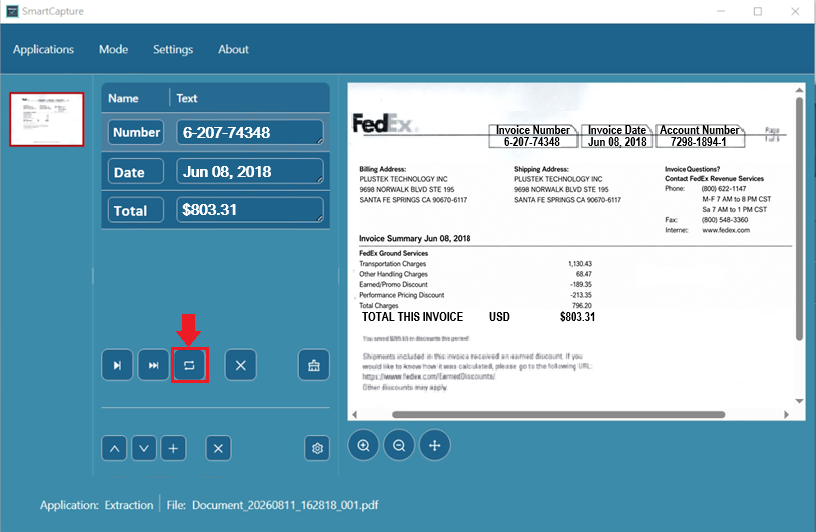
If you make a mistake or want to start over, click  to Reload Document. This reloads the document and clears all marked areas so you can re-extract the values.
o Reset Auto-Anchor Class
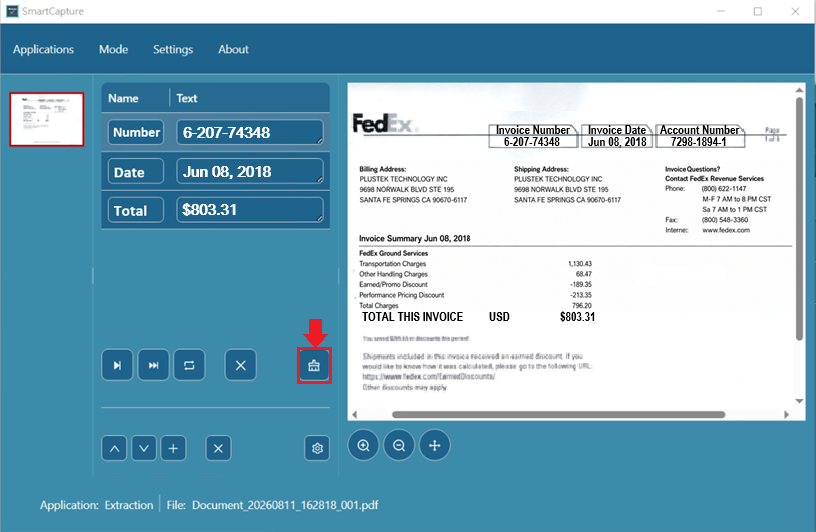
Click  to clear all previously mapped fields and start over with manual field selection for that document type.
o Confirm and next document

Once all fields have been correctly mapped, click  to save the field mappings and continue to the next document.
Repeat this process for each new document layout.
o Repeated Document Processing
After you define the fields for a document and click , SmartCapture saves the field mappings and automatically applies them to subsequent documents with the same layout.
If a document with a different layout is detected, you will be prompted to define the fields again.
o Batch Processing Tools
Start  to automatically extract data from documents with the same layout and proceeds to the next document.
o Dismiss and Next Document:
Skips the current document and proceeds to the next document. Use this option if you do not want to process the current document.