Clicking the OCR icon on the left pane in the Button Configuration window displays its current button settings on the right pane. |
|
The settings can be categorized into two: OCR Settings on the upper part, and Scan Parameters on the lower part. |
|
The items and parameters available in the window are explained as follows: |
|

OCR Settings |
Determine to use which OCR application and what settings (e.g., recognition language, page orientation, ...) to process the scanned images into text file, as well as which word processor to start up and display the OCR'd results. |
|
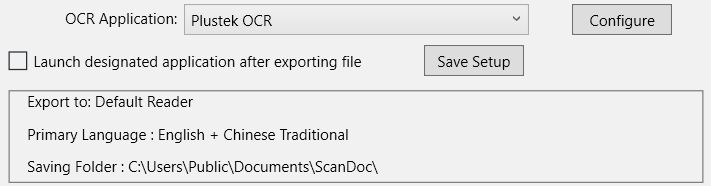
OCR Application |
All documents that are scanned are treated by the computer as graphic images. Acting as an image-to-text converter, an OCR (Optical Character Recognition) application program recognizes letters on a page and write them into an editable text file or a text-searchable pdf file. After the scan and recognition process completes, a linked text editor or viewer automatically opens, enabling you to instantly view, correct, and edit the converted image as a text document. |
|
The options available in the drop-down menu depends on the OCR application programs that you may have installed in your Windows. DocAction Plus has been programmed to support the following famous OCR applications in the industry to give you the convenience of single-touch OCR button operation: |
• |
Plustek OCR |
The availability of the programs may vary depending on the scanner model you purchase. |
|
Major OCR settings of the selected OCR application are displayed at the bottom. Clicking |

Launch designated application after exporting file |
Ticking this check box allows you to launch designated application after exporting file and save the OCR result of the scanned image(s) after the scan completes. |
Save Setup |
Clicking this button opens the Save Setup dialog box where you may determine where and in what file name format the scanned documents or images are saved. |
|
Scan Parameters |
• |
• |
Card Scanning Mode (This function may or may not be available depending on the scanner model you purchase.) |
• |
• |
• |
• |
• |
Multi-feed Detection (This function may or may not be available depending on the scanner model you purchase.) |
• |
Remove Punch Holes (This function may or may not be available depending on the scanner model you purchase.) |
• |
• |
Auto Scan (This function may or may not be available depending on the scanner model you purchase.) |
||
• |
• |
Also see: |
