Clicking the PDF icon on the left pane in the Button Configuration window displays its current button settings on the right pane. |
The settings can be categorized into two: File Saving Settings on the upper part, and Scan Parameters on the lower part. |
|
The items and parameters available in the window are explained as follows: |
|

File Saving Settings |
Determine how the scanned documents or images are saved to files. |
|
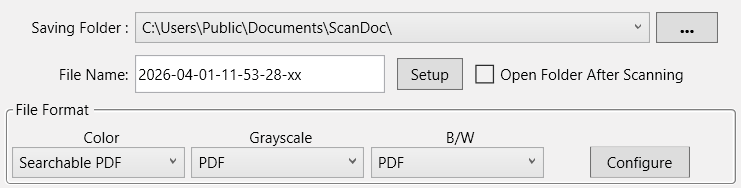
Saving Folder |
The scanned documents or images are automatically saved to the folder displayed here. |
|
To select or modify the saving folder, click |

File Name |
Specifies the file name format to save scanned documents or images. The file name extension is automatically added according to the file format you set up. |
|
The current file name format is displayed in the white rectangle. To change to a different format, click |

File Format |
Determines the image file format to save the scanned documents or images to. The following file formats are available from the drop-down list box: |
• |
Searchable PDF |
• |
Different file formats can be set for different scan modes. You may simply change the scan parameters. |
|
Clicking |

|
Scan Parameters |
• |
• |
Card Scanning Mode (This function may or may not be available depending on the scanner model you purchase.) |
• |
• |
• |
• |
• |
Multi-feed Detection (This function may or may not be available depending on the scanner model you purchase.) |
• |
Multi-image output (This function may or may not be available depending on the scanner model you purchase.) |
• |
Remove Punch Holes (This function may or may not be available depending on the scanner model you purchase.) |
• |
• |
Auto Scan (This function may or may not be available depending on the scanner model you purchase.) |
||
• |
• |
|