
 Brazil
 Latin
America
Latin
America USA &
Canada
USA &
Canada Australia
 China
China India
India Indonesia
 Japan
Japan Korea
Korea Taiwan
 Vietnam
 Austria
 France
 Germany
 Italy
Italy Netherlands
 Other
Europe
Other
Europe Poland
 Russia & CIS
 Spain
Spain Switzerland
 United Kingdom
 Saudi Arabia
  Turkey
 Israel
 Click to enlarge image
×
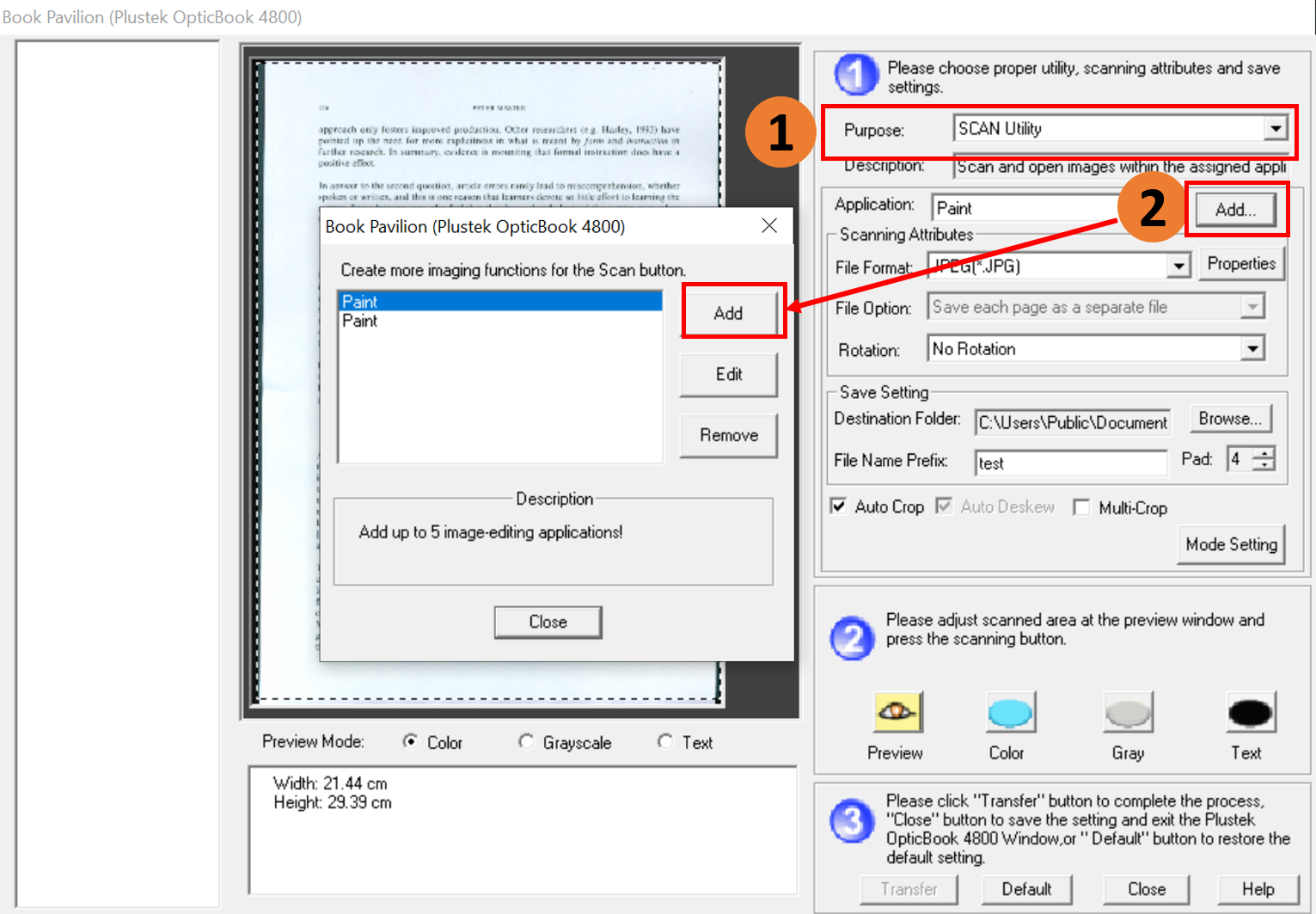
1. Choose your scan Purpose: SCAN Utility
2. Click Add to add your third party software, such as Paint, Photoshop or GIMP into Book Pavilion.
Click to enlarge image
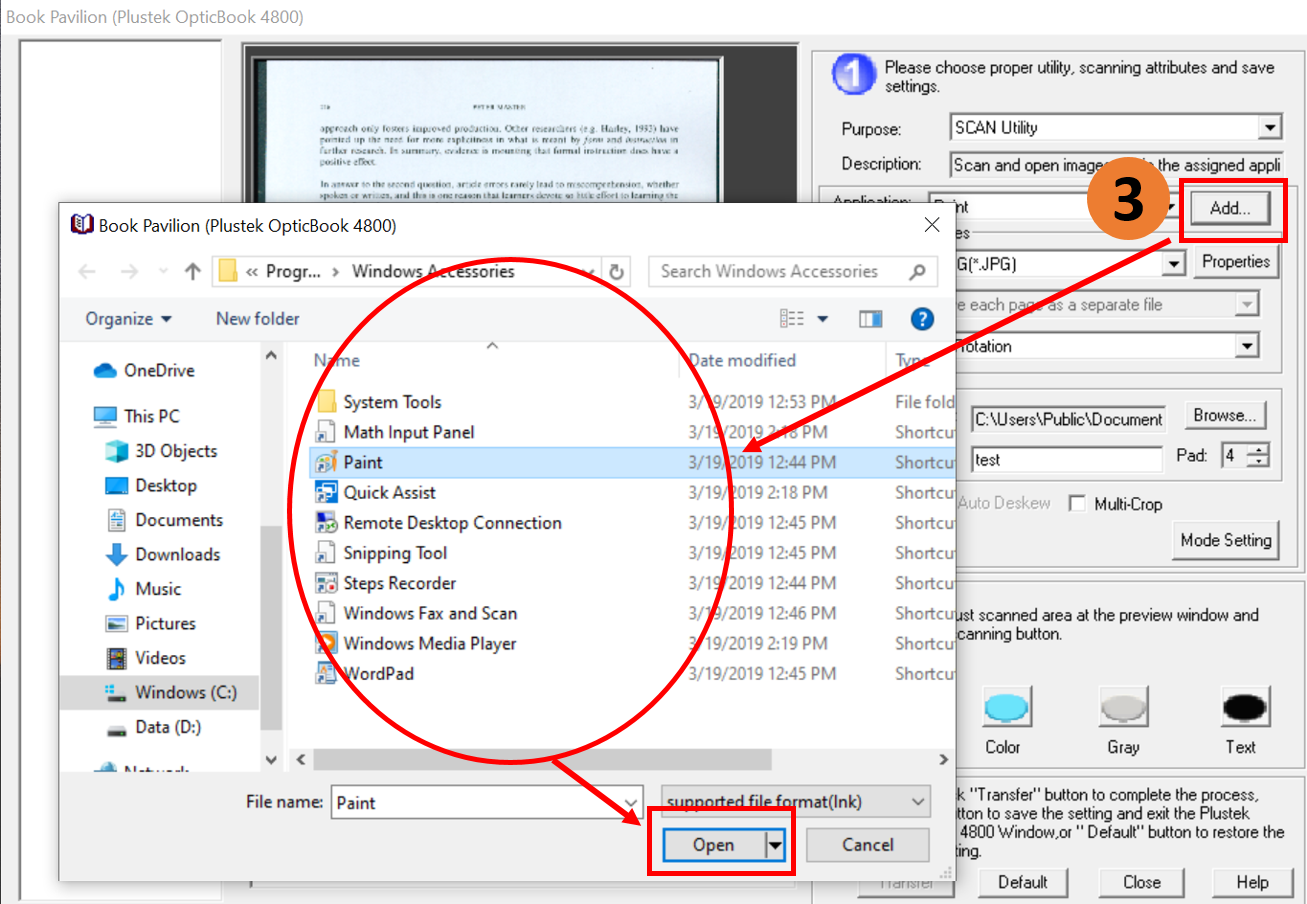
3. After finish choosing, please click Open.
 Click to enlarge image
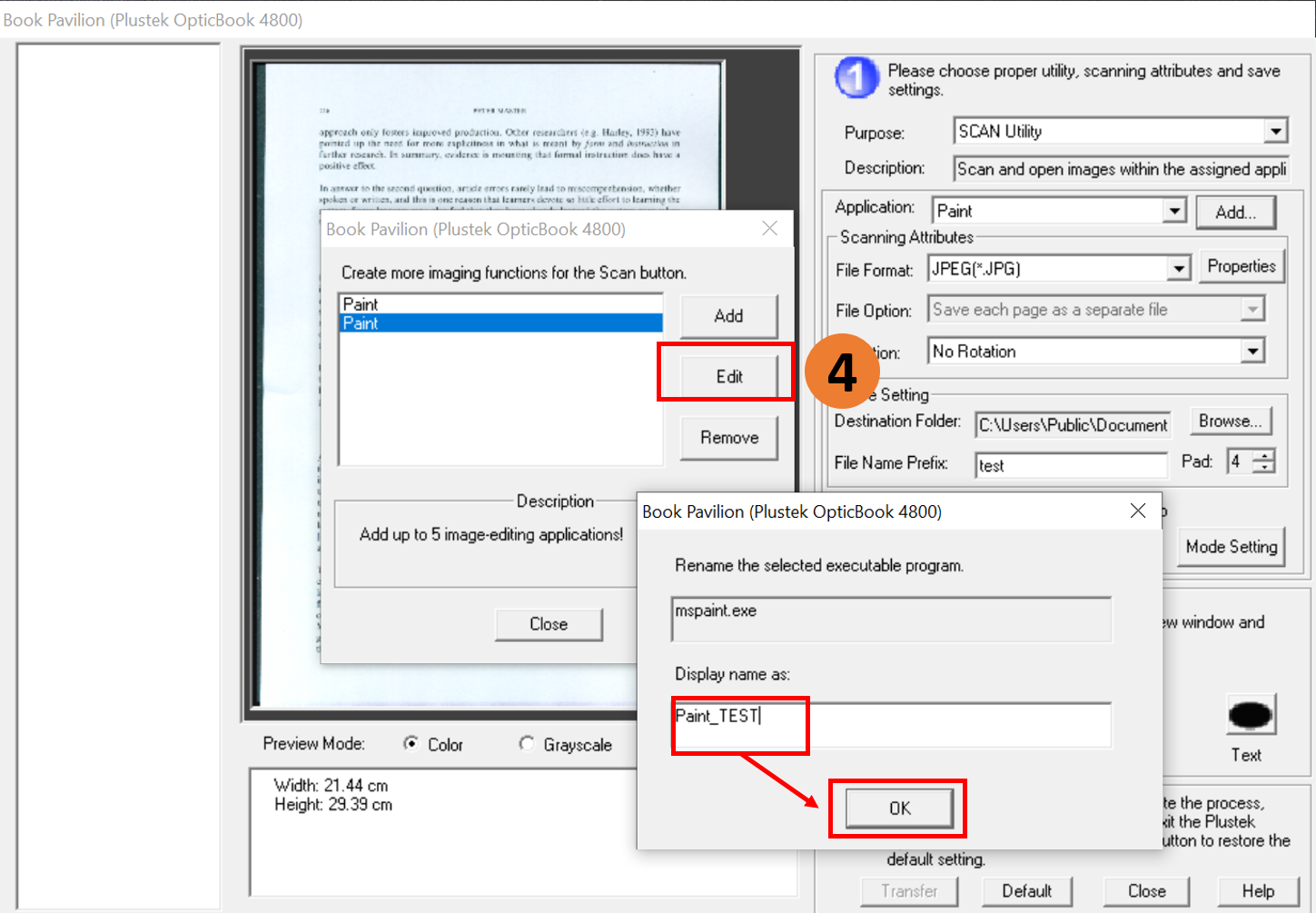
4. If you want to change third party software name, please click Edit to rename then click OK to finish renaming it.
 Click to enlarge image
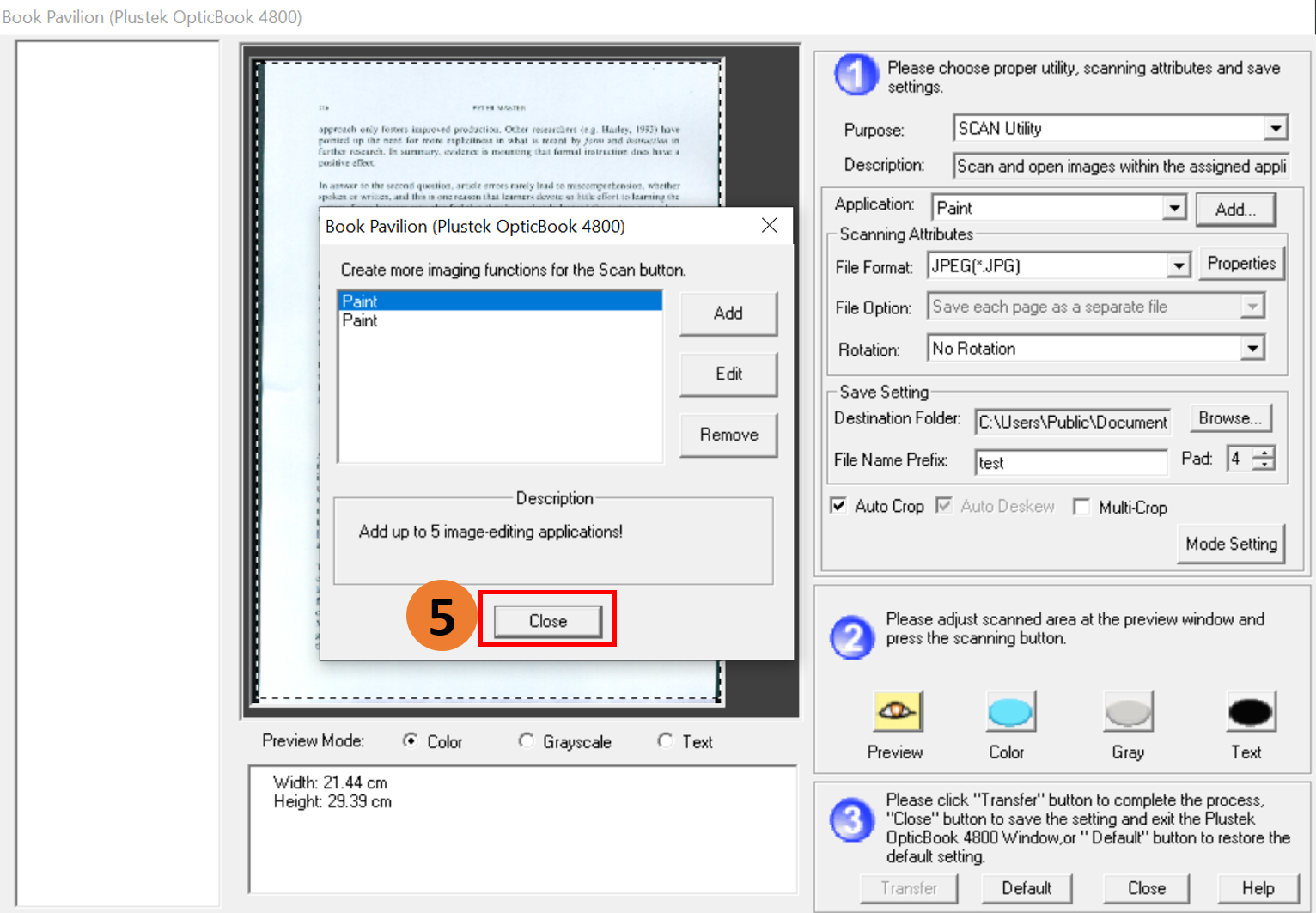
5. Finish choosing third party software and changing the name, you can click Close.
 Click to enlarge image
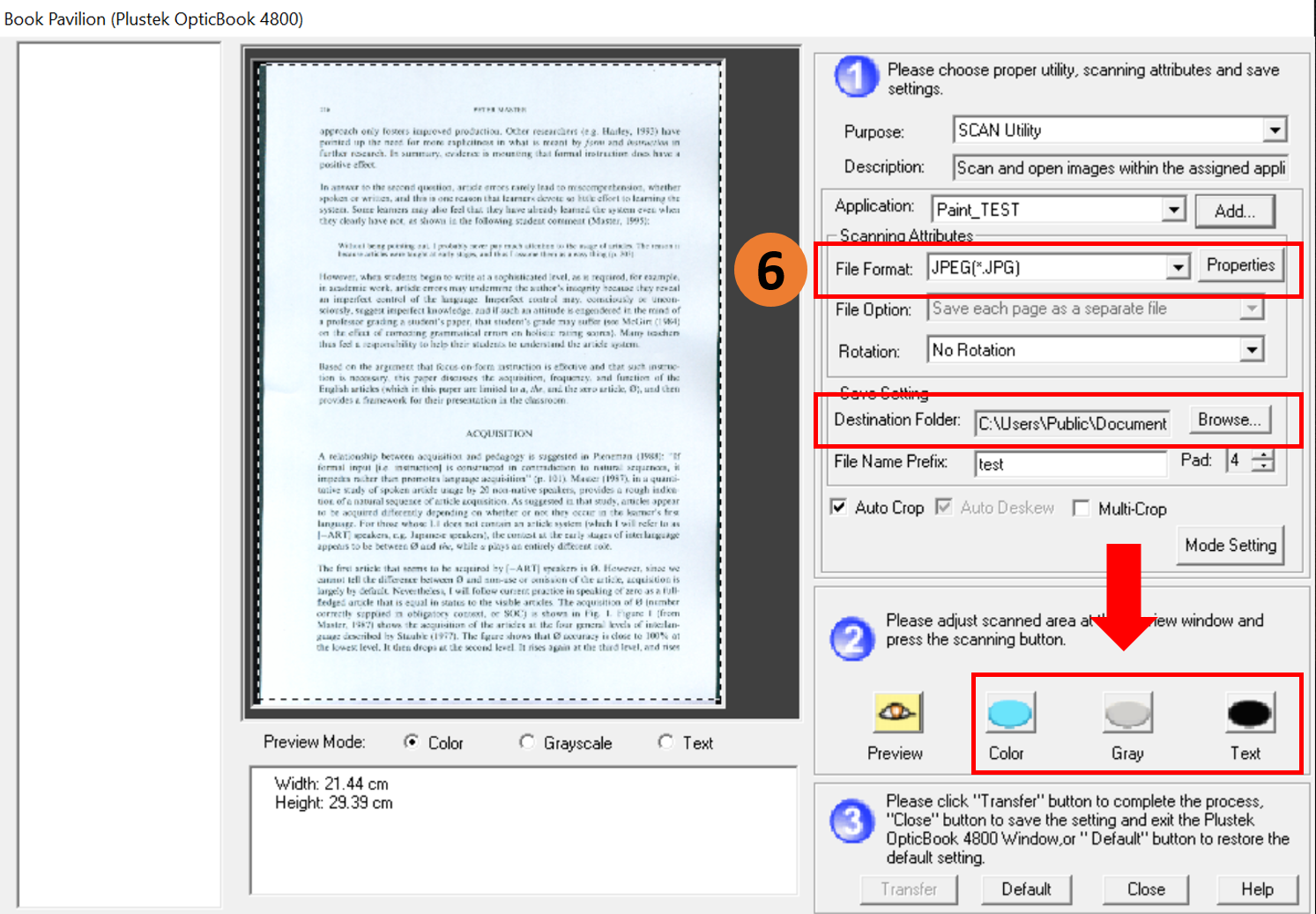
6. Choose your File Format and Destination Folder and click Scan( Color, Gray, Text) button start to scan.
 Click to enlarge image
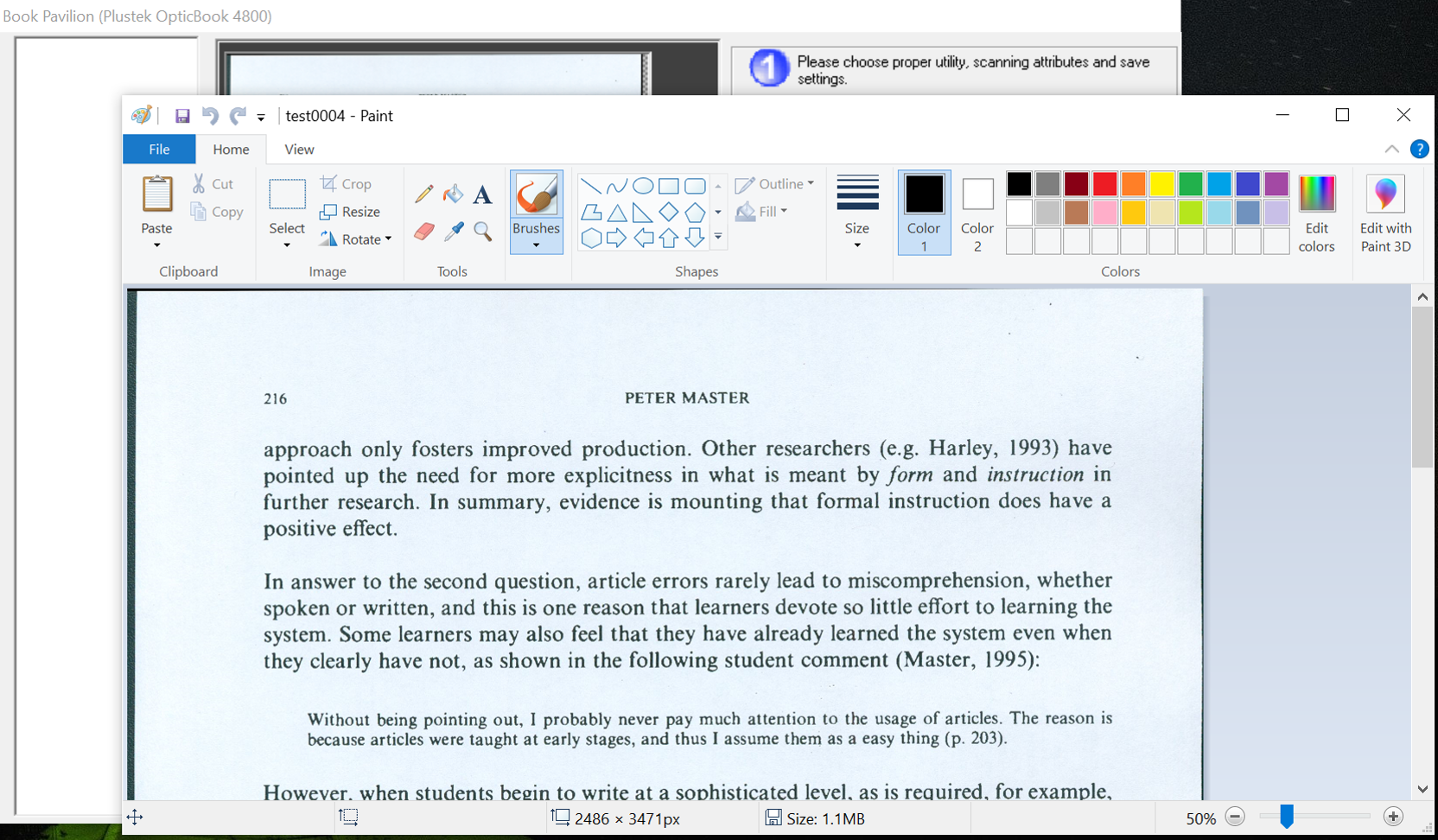
7. When you finish scannning your file will directly open at the selected third party software.
 Click to enlarge image
