Clicking the eMail icon on the left pane in the Button Configuration window displays its current button settings on the right pane. |
|
The settings can be categorized into two: File Saving Settings on the upper part, and Scan Parameters on the lower part. |
|
The items and parameters available in the window are explained as follows: |
|

File Saving Settings |
|
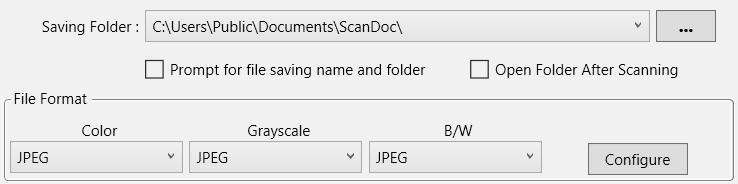
Saving Folder |
The scanned documents or images are automatically saved to the folder displayed here. |
|
To select or modify the saving folder, click |

|
DocAction Plus will automatically assign the file name to save the images. |
Prompt for file saving name and folder |
Tick this check box if you prefer to save each scanned image manually. After the scan of each page finishes, a Save dialog box appears on screen and you may select the folder and file name to save the scanned images individually. This option is useful if you want to save the images scanned in a batch to different folders or in different file naming patterns. |
File Format |
Determines the image file format to save the scanned documents or images to. The following file formats are available from the drop-down list box: |
• |
JPEG: Not available for B/W scan mode. |
• |
TIFF - Uncompressed |
• |
TIFF - Compressed |
• |
• |
PNG |
• |
Windows Bitmap |
Different file formats can be set for different scan modes. For example, if you usually need color images in JPEG and B/W images in BMP, you may configure so here. Next time when you scan a document in color first and then another document in B/W, you may simply change the scan parameters without the trouble of changing file formats frequently. |
|
Clicking |

|
Scan Parameters |
• |
• |
Card Scanning Mode (This function may or may not be available depending on the scanner model you purchase.) |
• |
• |
• |
• |
• |
Multi-feed Detection (This function may or may not be available depending on the scanner model you purchase.) |
• |
Multi-image output (This function may or may not be available depending on the scanner model you purchase.) |
• |
Remove Punch Holes (This function may or may not be available depending on the scanner model you purchase.) |
• |
• |
Auto Scan (This function may or may not be available depending on the scanner model you purchase.) |
||
• |
• |
|
|
|
|
|